Terminal Guide for Beginners — Prepare for Claude Code with Ollama
What You Will Learn
By the end of this post, you will be able to:
- Open Terminal on macOS, Windows, and Linux
- Use basic commands to navigate your computer
- Install Ollama
- Install Claude Code
- Run Claude Code with Ollama
1. 🖥️ What is the Terminal?
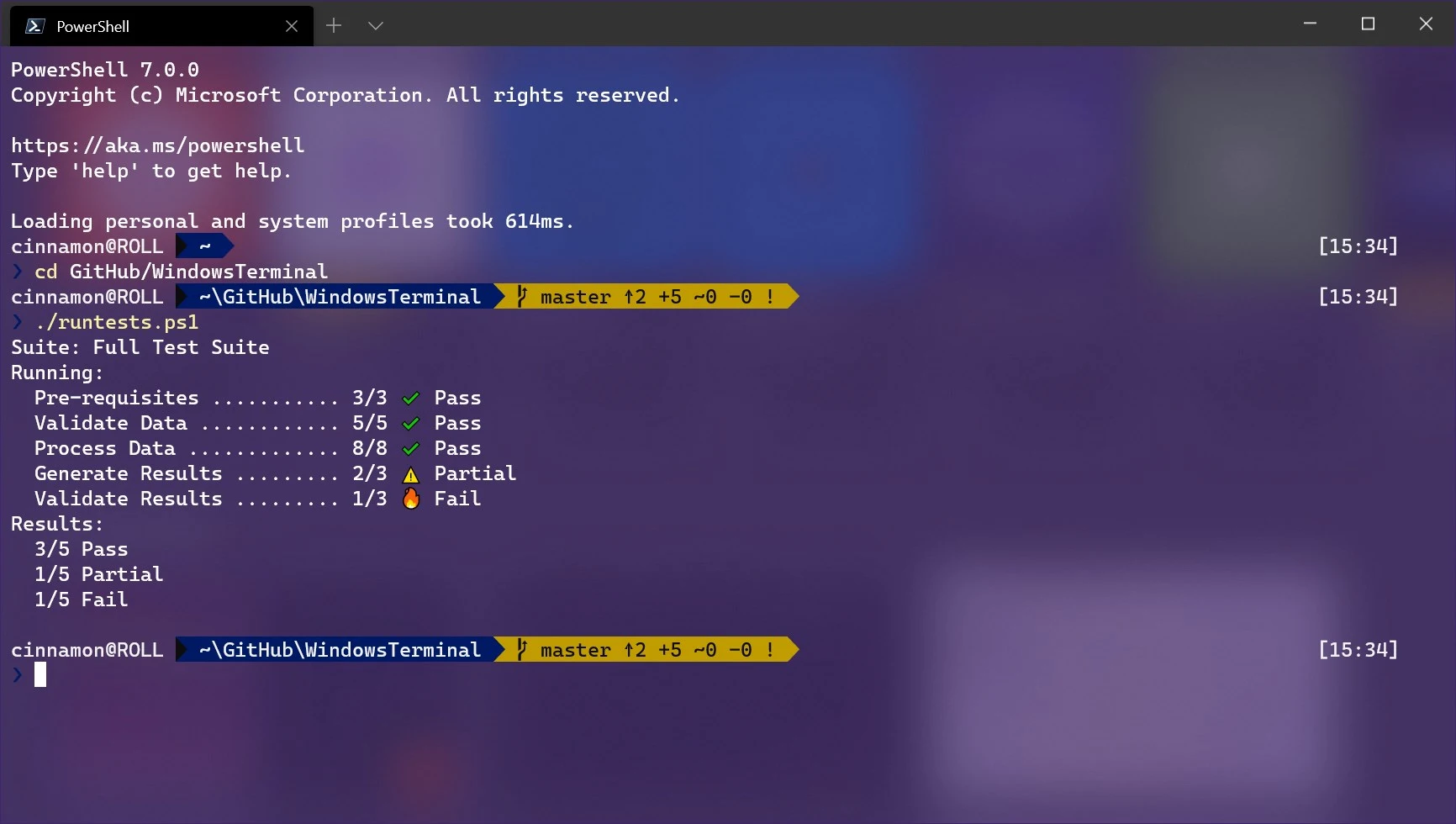
The Terminal (also called Command Line or CLI) is a program that lets you talk to your computer by typing instead of clicking with a mouse. It looks like a black screen where you type instructions, and the computer follows them.
For example:
- Instead of dragging a file to a new folder — you type
mv myfile.txt newfolder/ - Instead of double-clicking an installer — you type
npm installorpip install
⚠️ Don't be scared! The Terminal won't break your computer if you are careful. Take it step by step.
2. 🚀 Opening the Terminal
🍎 macOS
- Press
Command ⌘ + Spaceto open Spotlight Search - Type
Terminal - Press Enter
# You will see something like:
Last login: Fri May 9 10:00:00 on ttys000
yourname@MacBook ~ %
💡
~means you are in your Home folder
🪟 Windows
Windows has two options:
Option A — PowerShell (easy, built-in):
- Press
Windows Keyand typePowerShell - Press Enter
Option B — WSL / Ubuntu (better, recommended for Claude Code):
- Press
Windows Keyand typeMicrosoft Store - Search
Ubuntu→ click Install - Once installed, open Ubuntu like a normal app
- First time: set a username + password
💡 Note: your password won't show while typing — this is completely normal!
# PowerShell looks like:
PS C:\Users\YourName>

# WSL/Ubuntu looks like:
yourname@DESKTOP:~$
💡 WSL = Windows Subsystem for Linux — it's like running Linux inside Windows
🐧 Linux (Ubuntu / Debian)
- Press
Ctrl + Alt + T— Terminal opens immediately - Or right-click on the Desktop and choose "Open Terminal"
yourname@ubuntu:~$
3. 📂 Basic Commands
Now let's learn 12 essential commands you will use every day.
📍 3.1 — Know Where You Are
| Command | macOS/Linux | Windows (PowerShell) |
|---------|-------------|----------------------|
| Show current location | pwd | pwd |
# Type:
pwd

# Result:
/Users/yourname
pwd = Print Working Directory — shows the folder you are currently in.
📋 3.2 — List Files in a Folder
| Command | macOS/Linux | Windows (PowerShell) |
|---------|-------------|----------------------|
| List files | ls | ls or dir |
| List with details | ls -la | ls -la |
ls

# Result:
Desktop  Documents  Downloads  Pictures

# More details:
ls -la
📁 3.3 — Move Between Folders
| Action | Command |
|--------|---------|
| Enter a folder | cd foldername |
| Go back one level | cd .. |
| Go to Home folder | cd ~ |
# Enter Downloads folder
cd Downloads

# Go back one folder
cd ..

# Go back to Home
cd ~
🗂️ 3.4 — Create a New Folder
# Create a new folder
mkdir my-projects

# Create multiple folders at once
mkdir folder1 folder2 folder3
📄 3.5 — Create a New File
# macOS / Linux
touch myfile.txt

# Windows (PowerShell)
New-Item myfile.txt
🗑️ 3.6 — Delete a File or Folder
# Delete a file
rm myfile.txt

# Delete a folder and everything inside it
rm -rf myfolder
⚠️ Careful!
rm -rfdeletes permanently — there is no Recycle Bin!
📋 3.7 — Copy & Move Files
# Copy a file
cp original.txt copy.txt

# Rename a file (move in place)
mv oldname.txt newname.txt

# Move a file into a folder
mv myfile.txt Documents/
🔍 3.8 — Read a File
# Show file content
cat myfile.txt

# Scroll through a long file
less myfile.txt
# (Press Q to quit)
🧹 3.9 — Clear the Screen
clear
💻 3.10 — Pro Tip: Tab Autocomplete
Press Tab halfway through typing and Terminal will auto-complete for you.
# Example:
cd Down[TAB]   →   cd Downloads/
This saves a lot of typing and helps avoid typos!
4. 🦙 Installing Ollama
Ollama is software that lets you run AI models (like Llama, Gemma, Mistral) directly on your own computer — without needing the internet!
🍎 macOS
# Option 1: Download the app from:
# https://ollama.com/download

# Option 2: Install via Homebrew (if you have it):
brew install ollama
🐧 Linux / 🪟 Windows (WSL)
# Copy and paste this into Terminal:
curl -fsSL https://ollama.com/install.sh | sh
Wait 1–2 minutes for installation to complete.
🪟 Windows (PowerShell without WSL)
Go to https://ollama.com/download and download the Windows installer (.exe), then install it like a normal app.
✅ Verify Ollama is Working
ollama --version

# Result (example):
ollama version 0.3.x
⬇️ Download Your First AI Model
# Download Llama 3
ollama pull llama3

# Or a smaller model (faster on low RAM):
ollama pull llama3.2:1b

# Check downloaded models:
ollama list
💡 Full
llama3needs ~16GB RAM. If your computer is slow, usellama3.2:1binstead.
5. 🤖 Installing Claude Code
Claude Code is an AI coding tool by Anthropic that runs directly from your Terminal!
✅ Prerequisite: Node.js
Claude Code requires Node.js version 18+.
# Check if Node.js is installed:
node --version

# If you get an error, install Node.js:

# macOS (using Homebrew):
brew install node

# Linux / WSL:
curl -fsSL https://deb.nodesource.com/setup_22.x | sudo -E bash -
sudo apt-get install -y nodejs

# Windows: download from https://nodejs.org
📦 Install Claude Code
npm install -g @anthropic-ai/claude-code
Wait 2–3 minutes, then verify:
claude --version
6. 🔗 Connecting Claude Code with Ollama
Now the exciting part! We connect Claude Code to use Ollama instead of the Anthropic API — meaning it's fully free and works offline!
Step 1: Start Ollama
# Start the Ollama server — keep this window open!
ollama serve
Open a second Terminal window for the next steps. Ollama needs to keep running in the background.
Step 2: Configure Claude Code
# Run these in the second Terminal window:
claude config set model ollama/llama3
claude config set api_base_url http://localhost:11434
Step 3: Start Using It!
# Go to your project folder
cd ~/Documents/my-project

# Start Claude Code
claude
Claude Code will open a prompt and the AI — running entirely on your computer — will respond!
7. 🎯 Quick Reference Cheat Sheet
NAVIGATION
──────────────────────────────────────
pwd              → Where am I?
ls               → List files
cd foldername    → Enter a folder
cd ..            → Go back one level
cd ~             → Go to Home folder

FILES & FOLDERS
──────────────────────────────────────
mkdir name       → Create a folder
touch file.txt   → Create a file (macOS/Linux)
cp a.txt b.txt   → Copy a file
mv a.txt b.txt   → Move or rename a file
rm file.txt      → Delete a file
rm -rf folder    → Delete a folder (careful!)
cat file.txt     → Read a file
clear            → Clear the screen

OLLAMA
──────────────────────────────────────
ollama serve          → Start Ollama server
ollama list           → Show available models
ollama pull llama3    → Download a model
ollama run llama3     → Chat with AI in terminal

CLAUDE CODE
──────────────────────────────────────
claude           → Start Claude Code
claude --version → Check version
8. ❓ Common Problems & Fixes
❌ command not found
Meaning: The command you typed wasn't found on your computer.
Fix: Check your spelling, or use Tab to autocomplete.
❌ Permission denied
Meaning: You need admin permission to run that command.
# Add sudo before the command:
sudo command-here

# Type your password and press Enter
# (Password won't show while typing — that's normal!)
❌ Ollama: connection refused
Meaning: The Ollama server is not running.
# Terminal window 1:
ollama serve

# Terminal window 2:
claude
❌ Claude Code: API error
Meaning: Claude Code is looking for an Anthropic API key — configure it to use Ollama instead.
claude config set model ollama/llama3
claude config set api_base_url http://localhost:11434
🏁 Summary
Great work! You now know how to:
- ✅ Open Terminal on macOS, Windows (PowerShell & WSL), and Linux
- ✅ Use commands:
pwd,ls,cd,mkdir,cp,mv,rm,cat,clear - ✅ Install Ollama and download an AI model
- ✅ Install Claude Code
- ✅ Connect Claude Code with Ollama (offline & free!)
Written by: [Panha] · check more here